
Written by: Paul
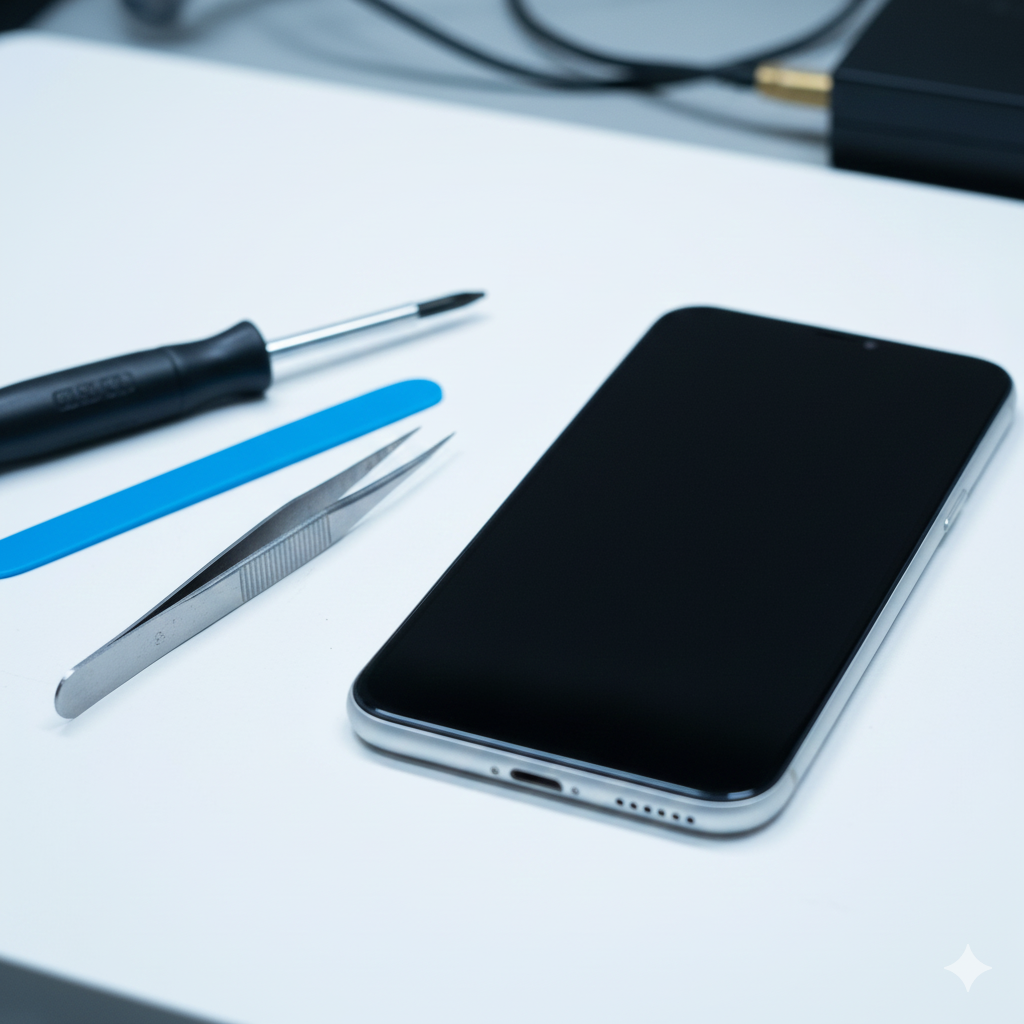
There is a specific kind of panic that sets in when your phone vibrates in your hand, rings with a FaceTime call, or chirps with a text notification—but the screen remains a cold, dead slab of black glass. You know the phone is “alive,” but it’s effectively a brick.
In the tech world, we call this the “Black Screen of Death.” At iGenius Phone Repair, this is one of the most frequent issues we see. As experts who live and breathe iPhone repair and Android diagnostics, we know that a black screen doesn’t always mean your phone is finished. Often, it’s just a communication breakdown between the “brain” (CPU) and the “eyes” (Display). In this guide, we’ll walk you through why this happens and how to potentially wake your screen back up.
Section 1: Why is My Phone “Alive” but the Screen is Black?
When your phone vibrates or makes sounds, it means the logic board is receiving power and the operating system is running. The failure is localized to the display pipeline.
The Most Common Culprits:
- System Crash: The software responsible for rendering the display has frozen.
- Disconnected Display Flex Cable: A minor drop can sometimes jar the internal connector loose, even if the exterior glass isn’t cracked.
- Backlight Failure: The screen is actually showing an image, but the lightbulb (backlight) is out. (Tip: Shine a bright flashlight directly at the screen; if you see faint icons, your backlight is dead).
- Liquid Damage: Corrosion can short-circuit the pins that send power to the OLED or LCD panel. According to Consumer Reports, liquid damage is a leading cause of long-term hardware failure in out-of-warranty devices.
Section 2: How to Force a Restart (The First Line of Defense)
Sometimes the software just needs a “kick” to realize it should be sending a signal to the screen.
For iPhone Users (8 and Newer):
- Quickly press and release Volume Up.
- Quickly press and release Volume Down.
- Press and hold the Side Button (Power) until you see the Apple Logo. Note: If the logo appears, your hardware is fine, and it was just a software glitch!
For Android Users (Samsung, Google Pixel, etc.):
- Press and hold the Power Button and Volume Down simultaneously for about 10–15 seconds.
- If the device vibrates and restarts, you’ve successfully bypassed a system “kernel panic.”
If these steps don’t work, the issue is likely deeper in the hardware, requiring a professional repair a device service.
Section 3: Professional Diagnostics & Hardware Solutions
If a hard reset fails, we have to look “under the hood.” For many, this happens on their tablets as well.
1. The Proximity Sensor Glitch
Sometimes, your phone “thinks” it is held up to your ear because the proximity sensor is dirty or blocked. This keeps the screen black to prevent “ear-dialing.” Try cleaning the top area of your phone with a microfiber cloth.
2. The Internal Connector
Inside your phone, a paper-thin ribbon cable connects the screen to the motherboard. If you’ve dropped your phone recently, this may have popped out of its socket. At our locations, we can often open the device and “reseat” this cable, saving you the cost of a full screen replacement.
3. Screen Replacement
If the internal OLED layers are damaged (indicated by a small ink-blot spot or vertical lines), the entire assembly must be replaced. This is a precision task that requires specialized tools to move your Face ID or Touch ID sensors to the new panel.
Section 4: Practical Recommendations to Prevent the Black Screen
To avoid this in the future, follow these industry-standard tips:
- Clear Your Storage: A phone with 0GB of available space is prone to system crashes that lead to black screens. Keep at least 10% of your storage free.
- Use a Protective Case: Cases with a “raised lip” protect the screen from the “flexing” that causes internal cables to disconnect.
- Avoid Extreme Heat: Leaving your phone on a car dashboard can melt the adhesive or damage the organic layers of an OLED screen.
If your phone is currently vibrating but unresponsive, don’t wait. Contact us immediately to prevent further damage to the motherboard.
FAQs
Q1: Will I lose my data if my screen is black?
A: Generally, no. Since the phone is still vibrating, your data is safe on the memory chip. We just need to fix the “window” (the screen) so you can see it again.
Q2: Can I fix a black screen by charging it?
A: It’s worth a try! Use a known-good cable and leave it for 30 minutes. If the phone is vibrating, it likely has power, but a low-voltage battery can sometimes cause display flickering.
Disclaimers
This guide is for informational purposes. Attempting to open your device may void your warranty. If your device is under manufacturer warranty, we recommend contacting the manufacturer first. iGenius is not responsible for damage caused by DIY repair attempts.